Some body please give me instructions on how to attach pictures to a post. Some one told me how but I lost the instructions.
Thanks,
Dick.
Dick, at the bottom area underneath the box area where you would type your genereal comments about your subject (scroll the page down) there is two tabs, one says Options and the other says Upload attachments.
Click on Upload attachments tab and it will ask you where the filename or image is located at. If you don’t know where it is at you can use the browse function to search in your C drive . Or what I do is to create a new folder on you desktop and put your pictures in there. That would be a quicker way of locating.
There is also a "File Comment: section where you can say a short blurb about the picture.
Then you can click on the “Add the file” and the attachement is done and you can submit the entire post with attachment at that point.
I will add a sample picture of my car to continue the process as described. (to make sure I am doing it right!)
John Q.
Denver 59 Fin Convert
Arvada, Colo
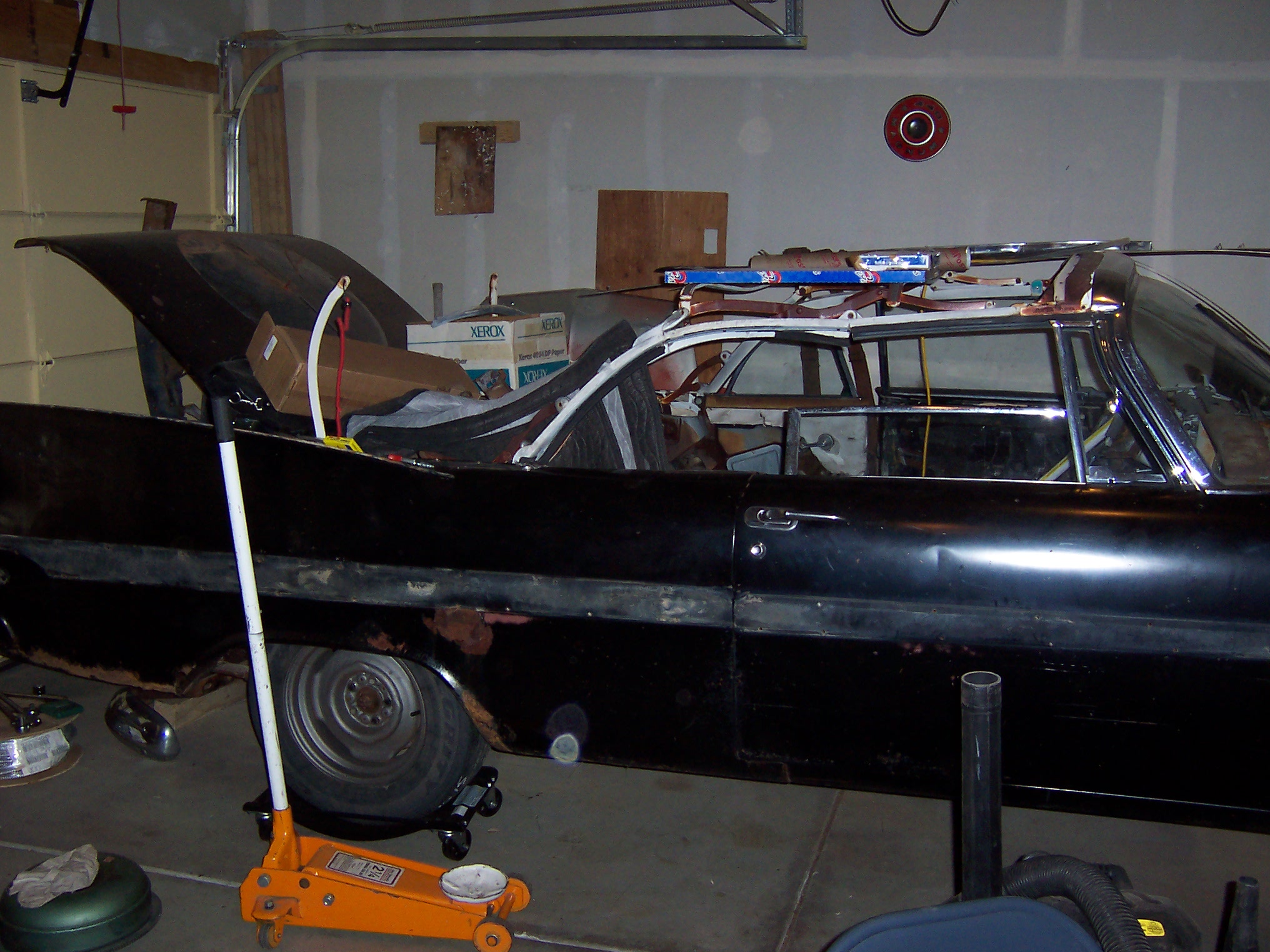
59 Belvedere Convert
OK here it goes.
Nothing, will try again.
First time I got a message the file was to big, second time the pixels were not right.
Woe is me.
Dick.
Dick, I emailed you, instructions on how to create a folder on your desktop and then we can drag pictures from you Kodak easy share to this new folder for up loading to the 59 web site. I also included my cell phone and we can talk over the phone on Thursday evening.
John 
Dick, there is a limit on the size of an upload – 3 megapixels. That’s 2560w x 2048h. Anything larger than that is really only suitable for film printing – it’s wasted on a computer monitor. If you have bigger pictures, you can scale them down by using something like Microsoft Paint. Go to Image → Stretch/Skew and change the percentages equally to reduce the dimensions.
The second thing is – after you press the upload button, you have to wait for the upload to complete. While it’s happening, you’ll see the Explorer flag “wave” or circle spin, depending on what browser you’re using – there’s motion in an icon to indicate there is activity. If you click a button during this interval, you’ll abort the upload.
Hopefully John can get you squared away!
Dan
OK John - I made the folder, labeled it Attachments, I dragged a picture from easyshare to the folder and am ready to give it a go. Hold on.
Dick
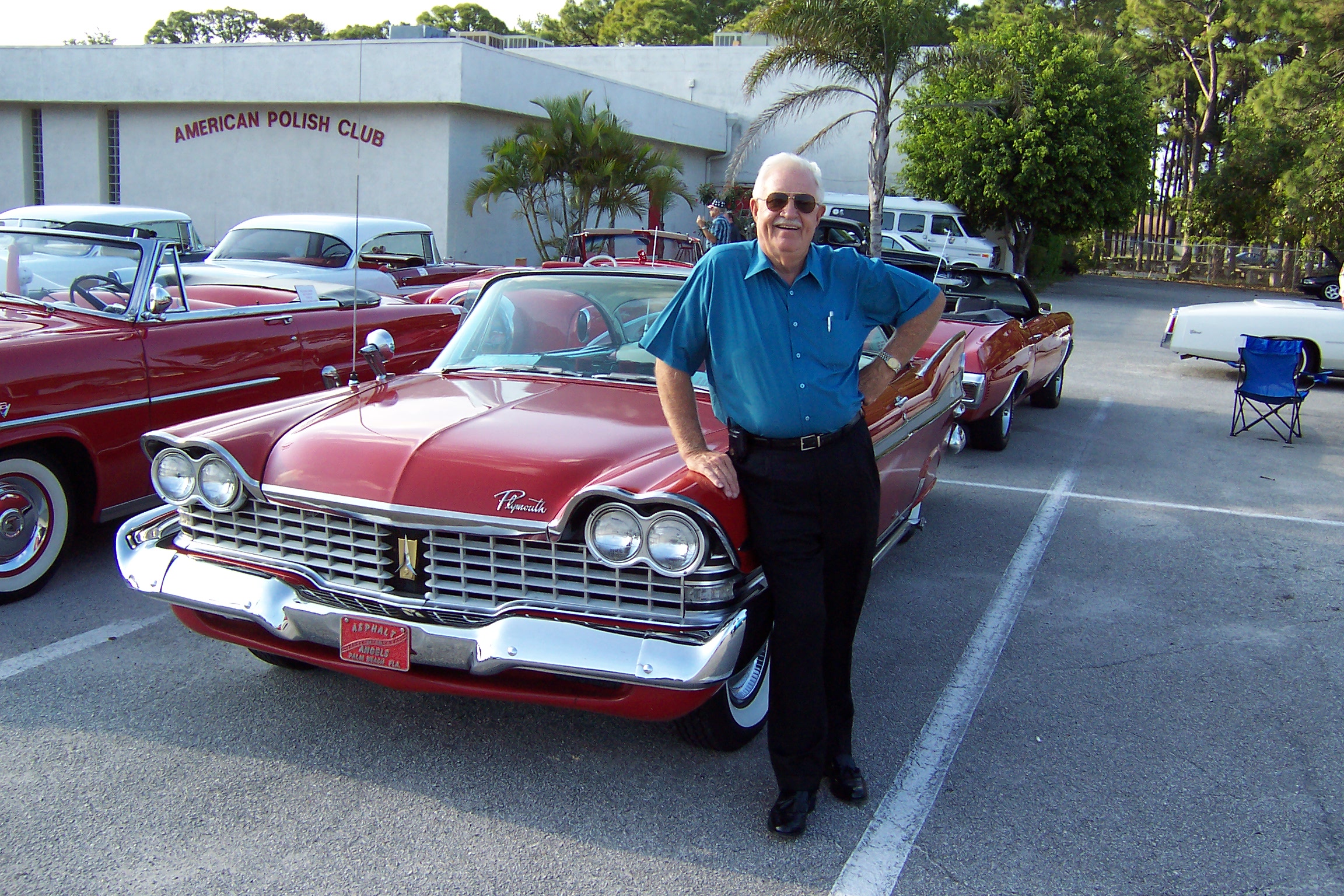
Wow, who’s that good looking guy
Thanks John and Dan - I hope I can retain this in my pea brain for more that a couple of hours.
Dick.
Waydago Dick! But, did you have to stand in front of that beautiful '59 like that?! I wanna see the rest of the car! 
Dan
Ya’ll be sorry I found out how to do this. heh, heh. I started the restoration 1-1/2 yrs. ago, will start again as soon as I finish painting my 60 Desoto.
Dick.
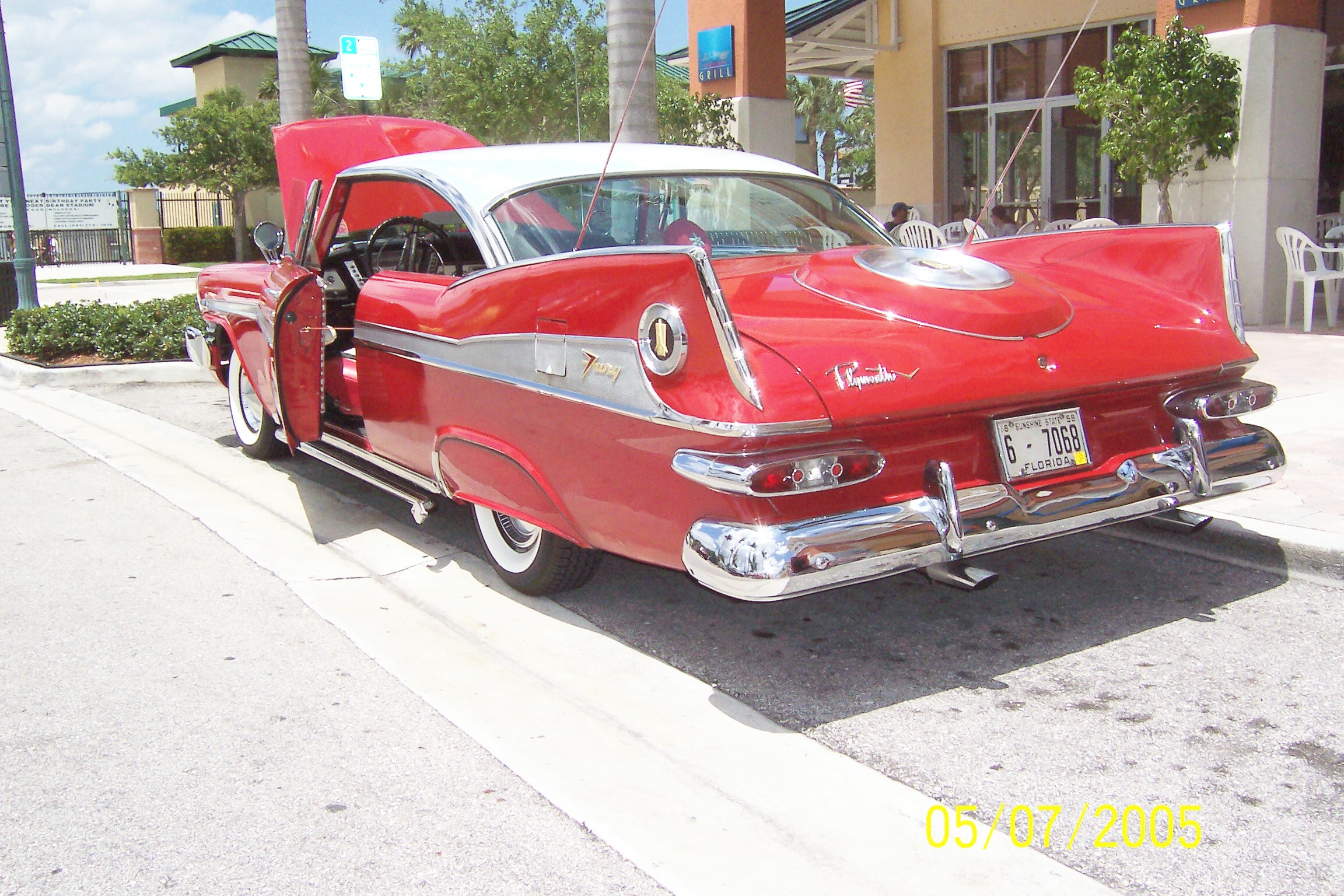
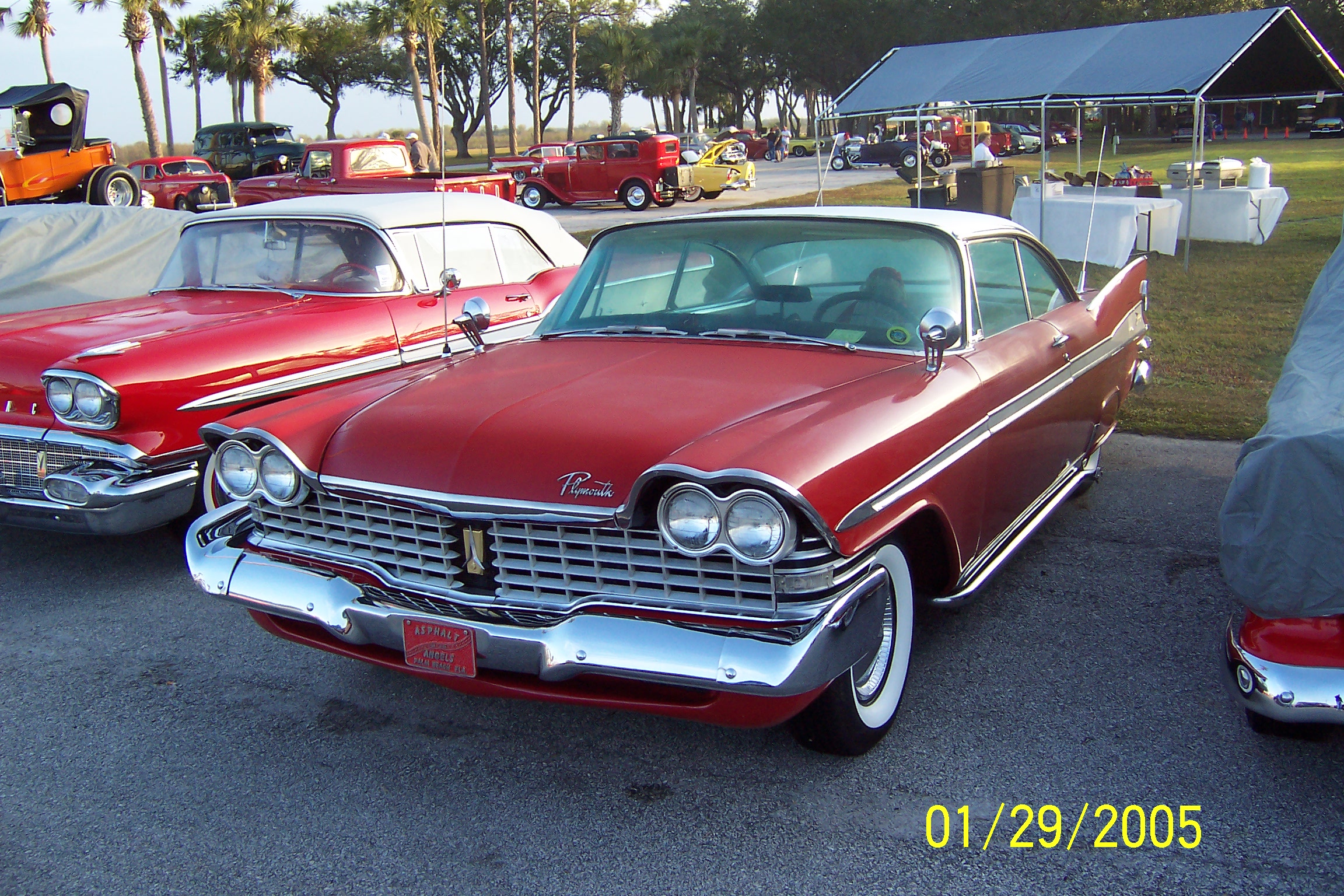
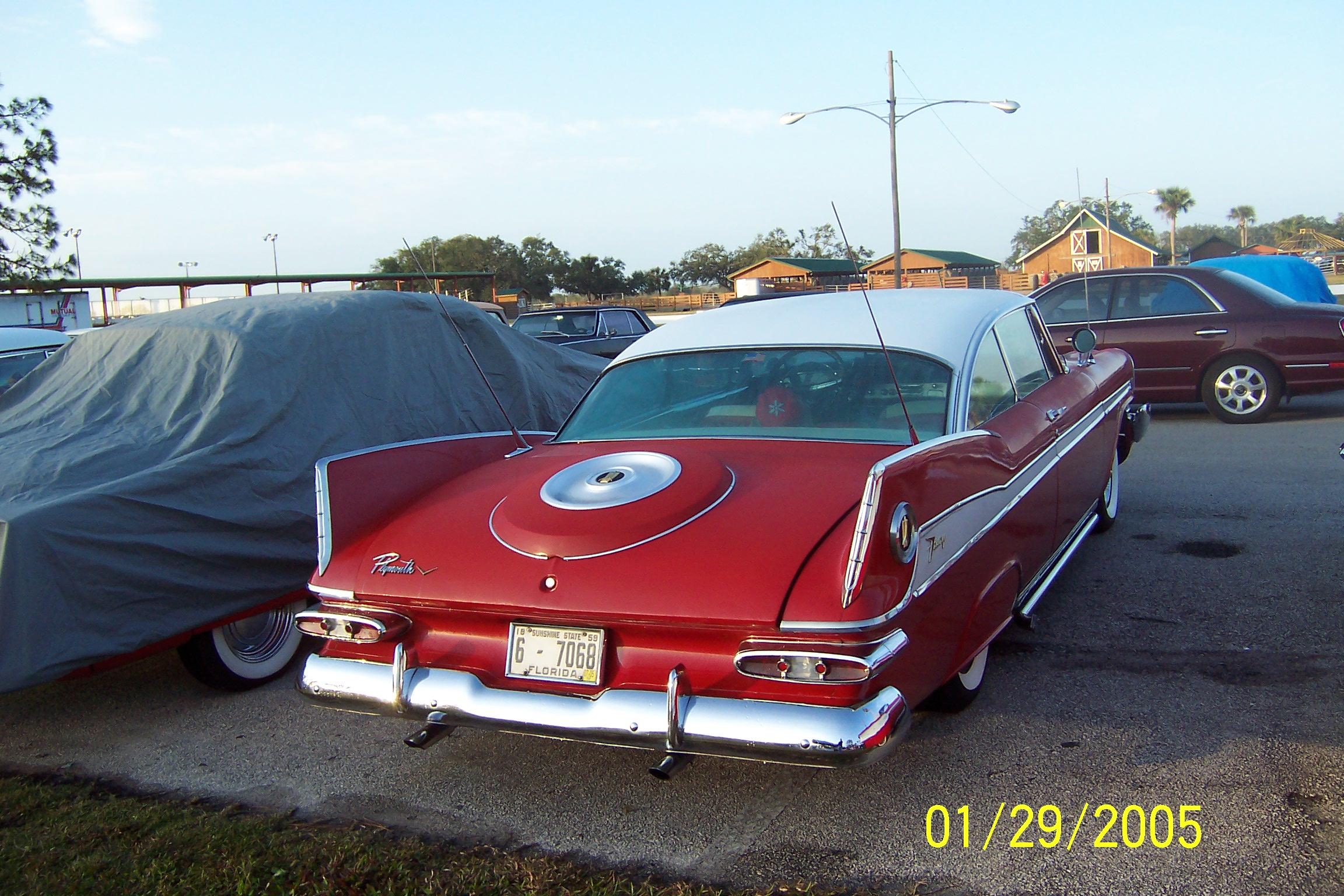
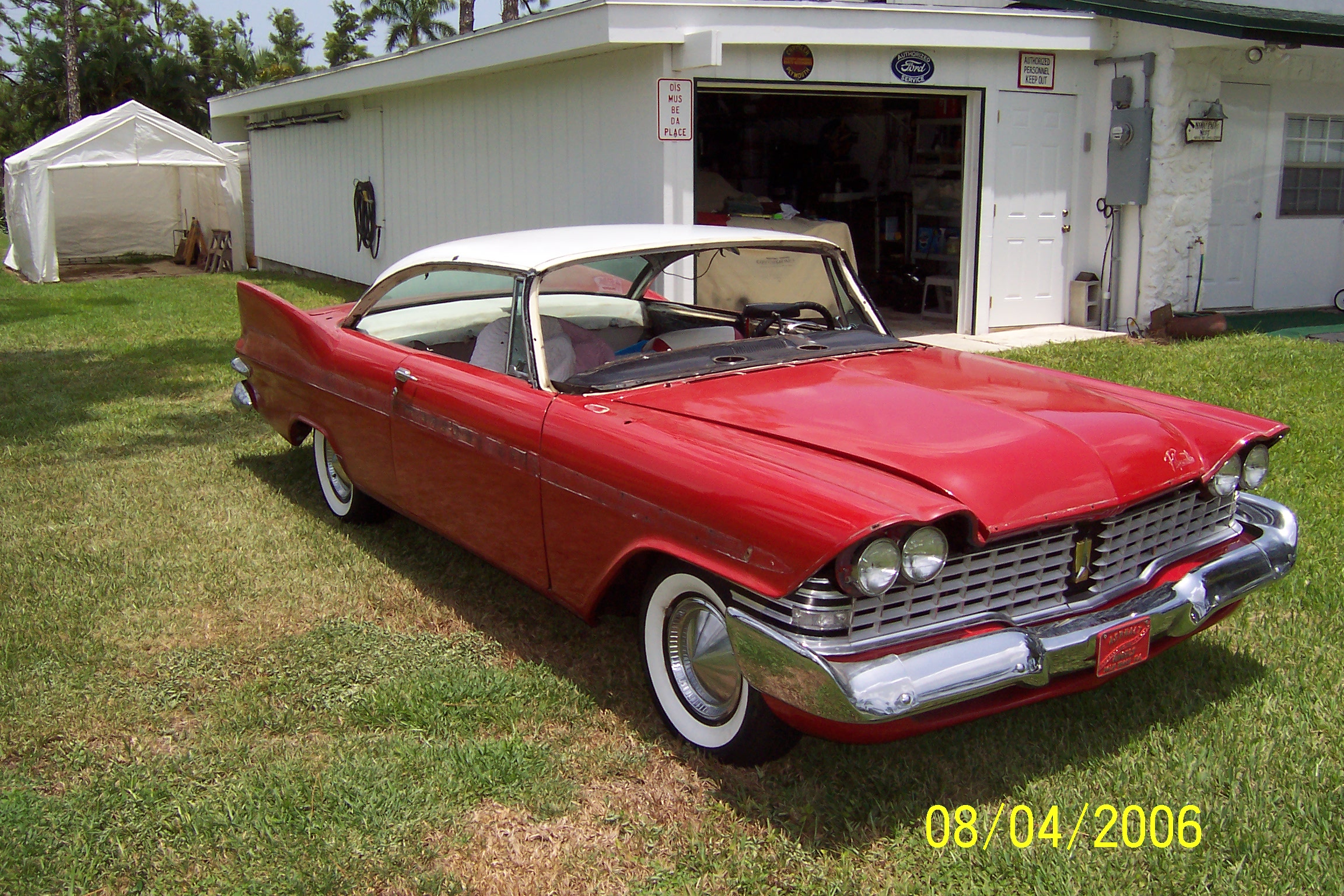
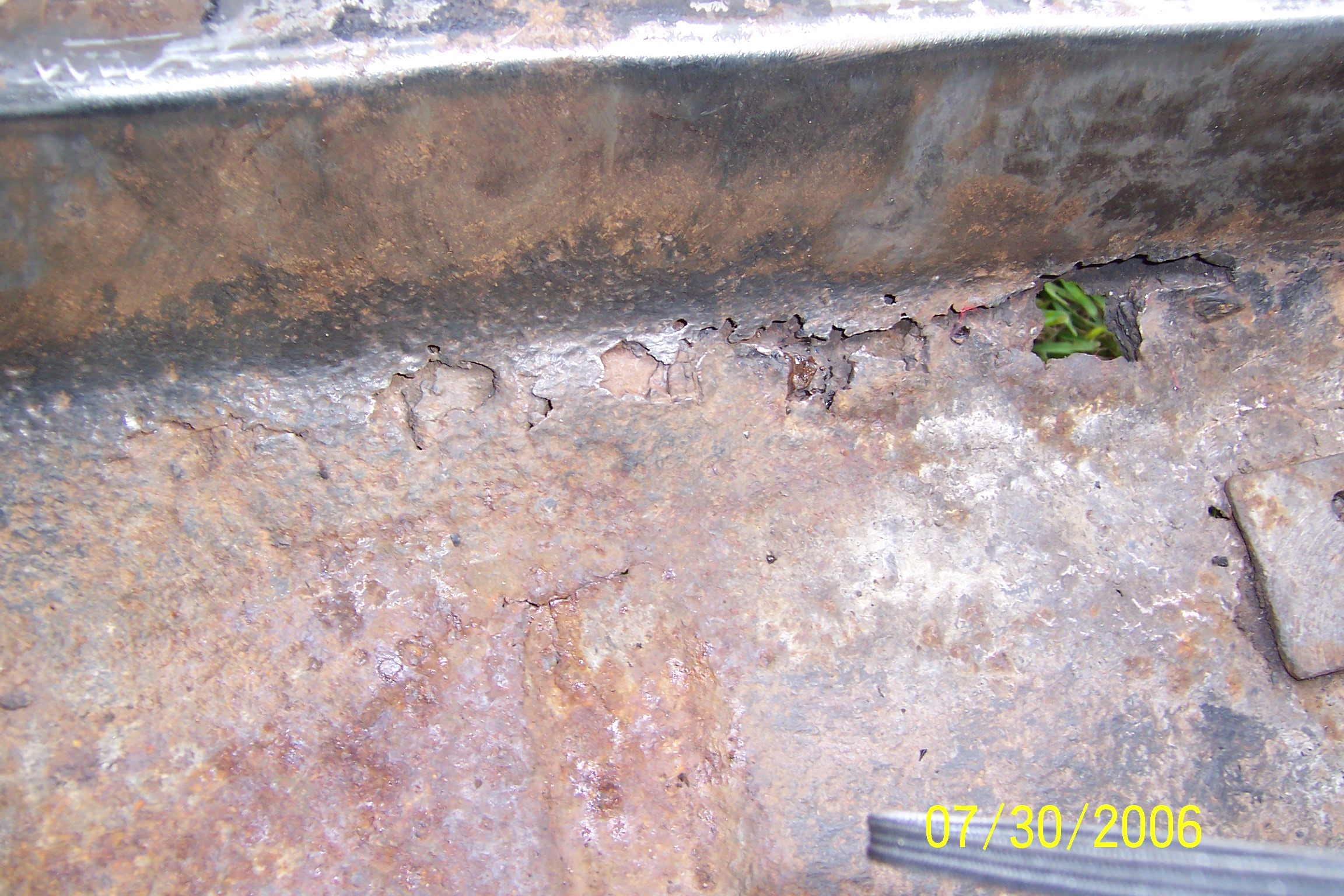
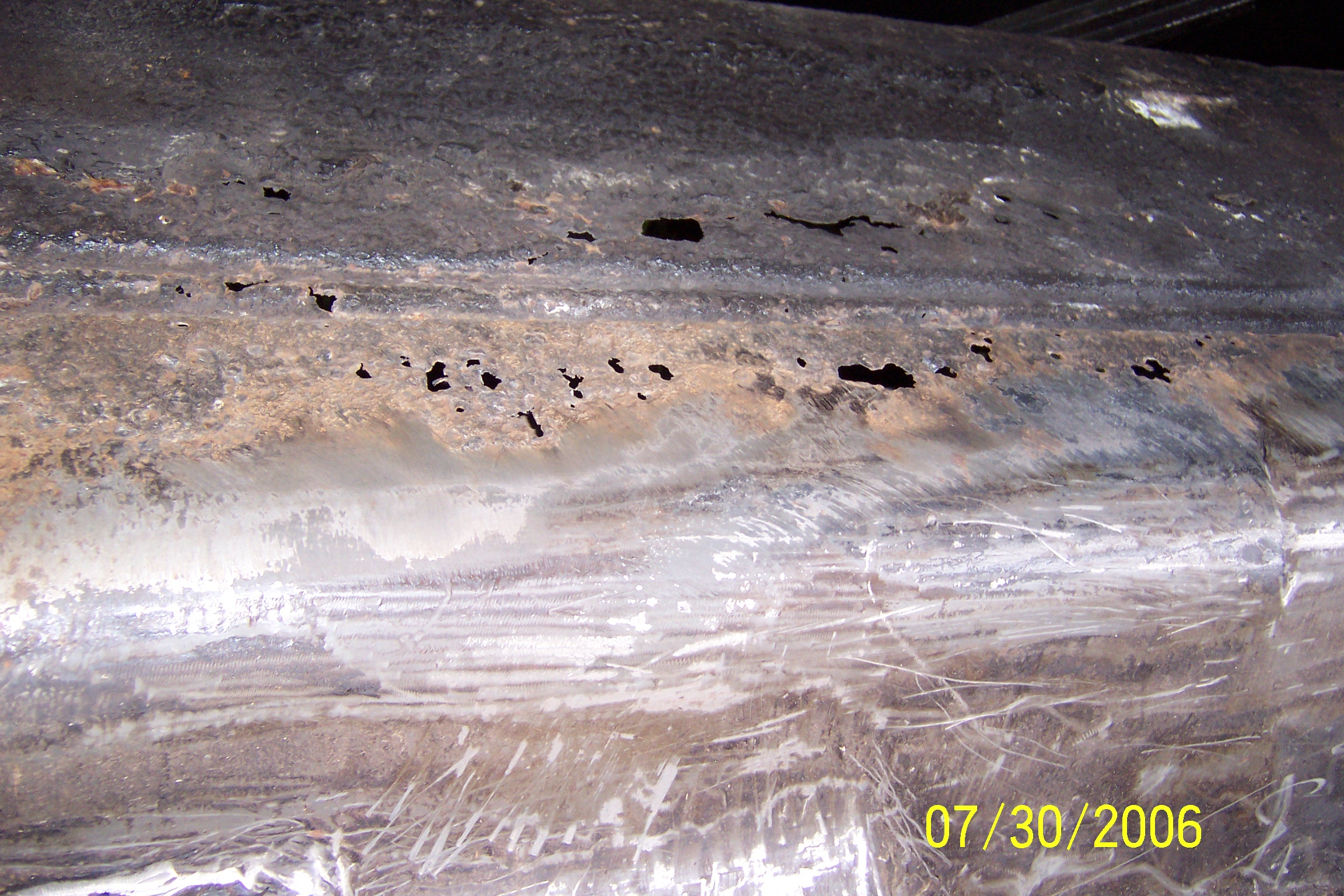
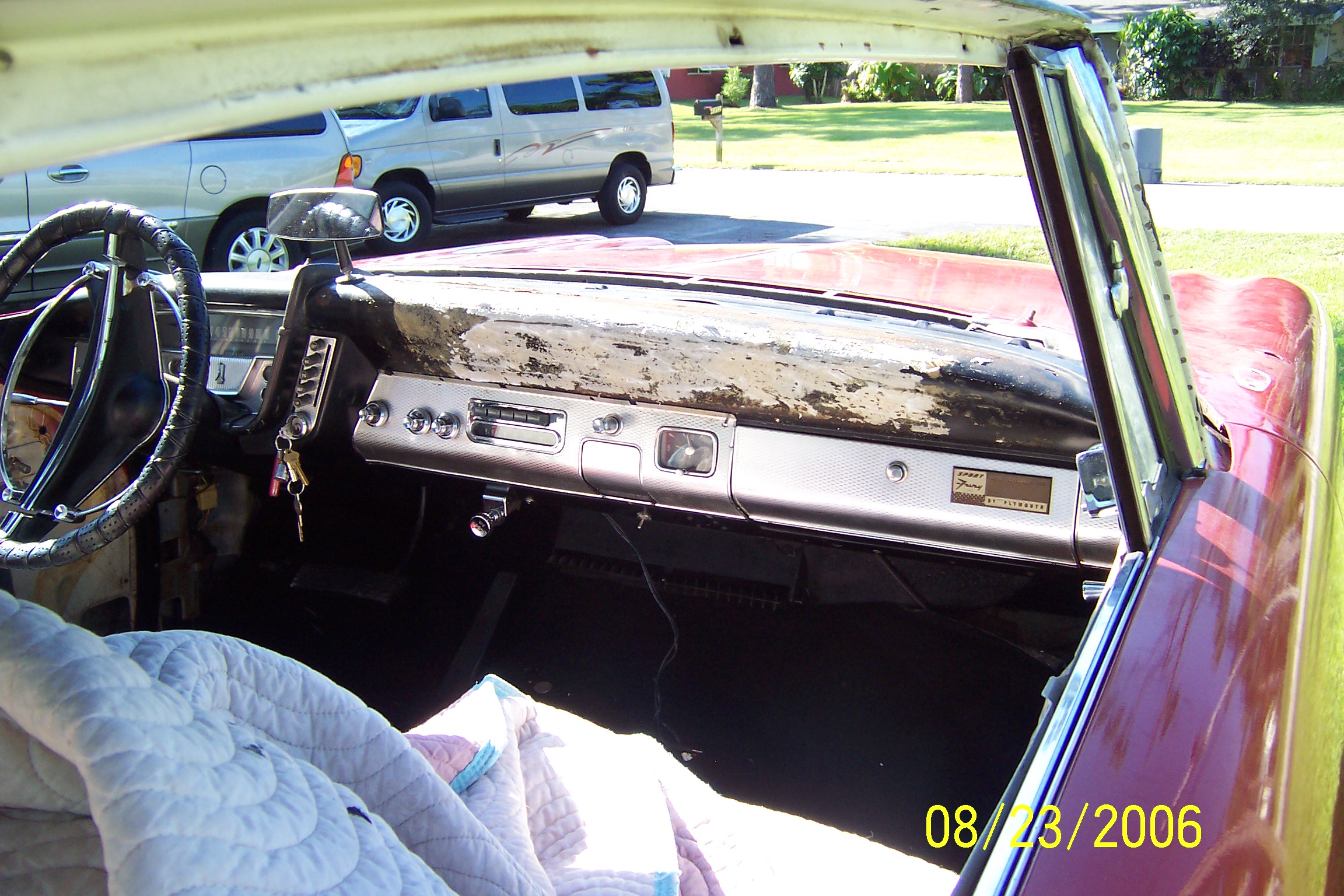
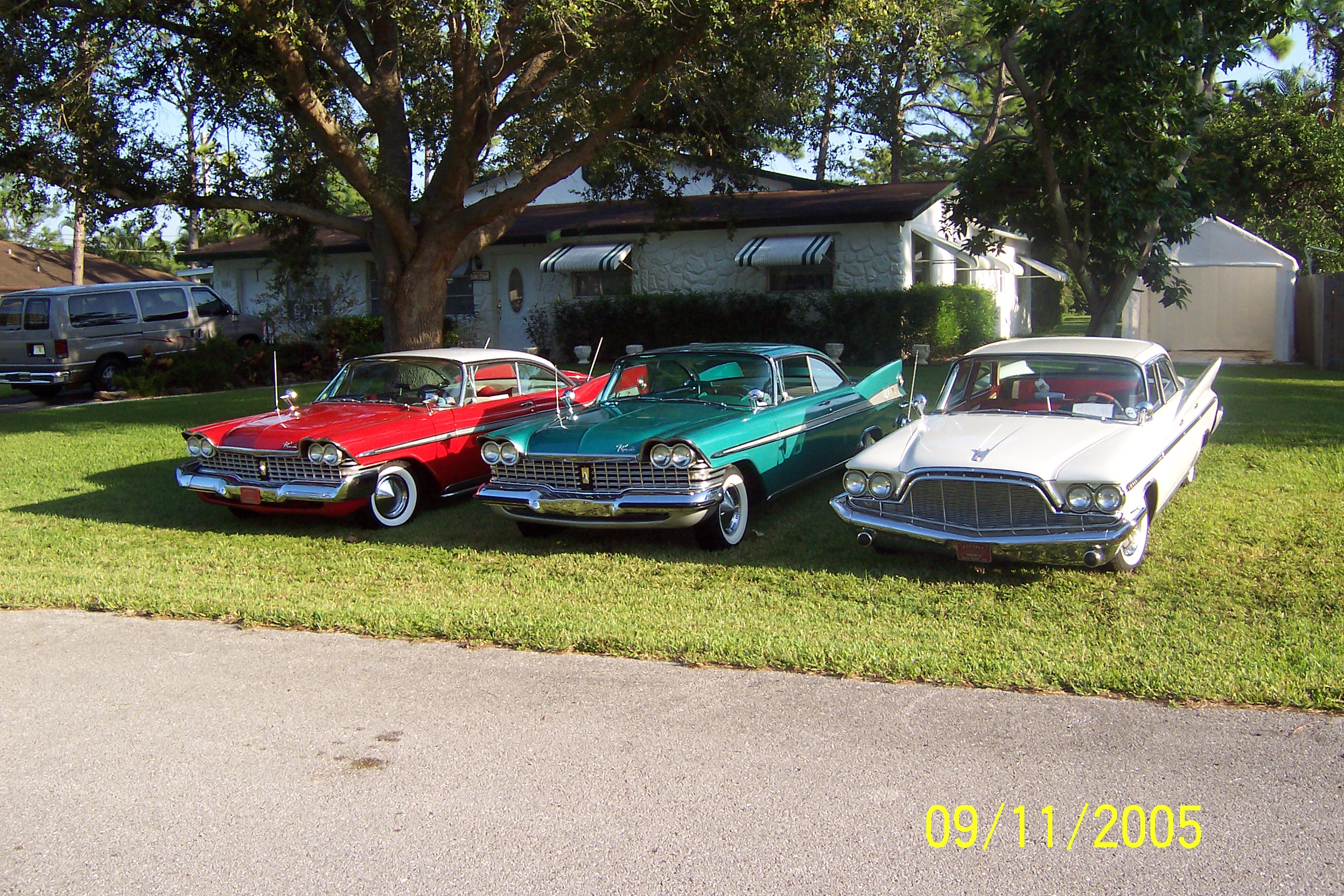
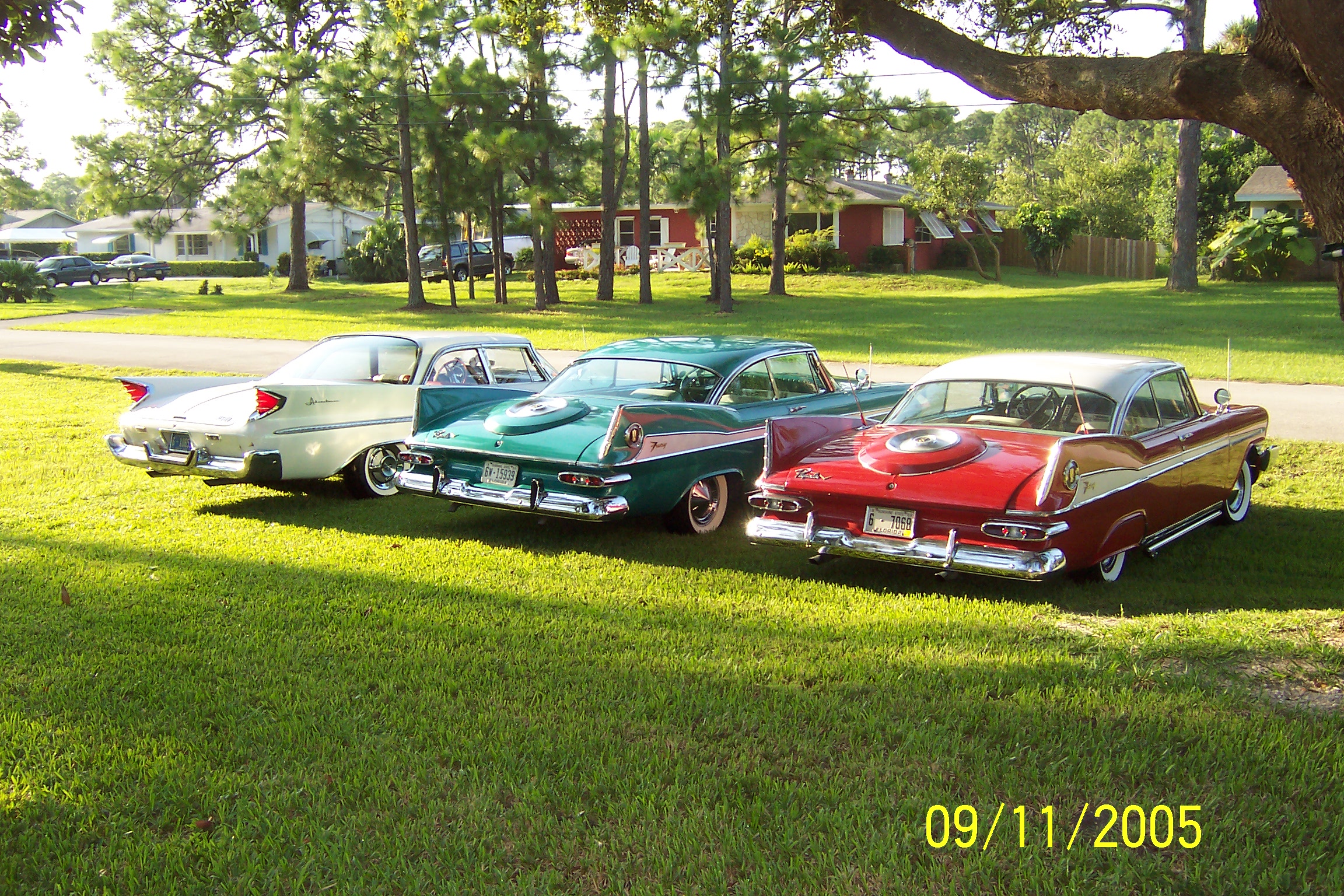
Good job Dick, now keep posting those pictures before you forget how to do it 
I sure would like to see more pics of the work in progress!
Ron
Oh Boy, we have created a monster now with the pictures!!! Super pictures and cars Dick! You learn quickly.
Dan, I think we might need a bigger server to handle all of Dick’s uploads!
John Q.
Hoo hah, Dick! Fantastic!
Not only can I now see what you look like.
might regret saying this, but seeing so many red Plymouths (including mine), your green one stands OUT! (so does Tom Fox’s). Maybe I should get another HT (prefer 4HT) and paint it 59 yellow or some other not-often-seen color…
I really like the foto of all three on your side lawn!
Your cars are great Dick. I too had an awful time with attachments. Life was alot simpler after I reset my camera’s picture resolution setting to 1 megapixel. I’ll take Dan’s advice and try to work with 3. Glad old cars aren’t this complicated. Steve
Steve - Thanks for the suggestion. I have a Kodak Easyshare Camera C875. When I go to the Menu it gives me a screen that says Picture Size. The choices are 8.0 MP, 7.1MP(3:2), 5.0 MP, 3.1 MP, and 1.1 MP. The camera is not set on 8.0 MP, which would be the best setting for attachemnts and still give a good, clear picture. Appreciate your help. Dan gave me a suggestion on how to change my current pictures but I can’t find Microsoft Paint on my computer.
Dick.
Dick,
The 3.1 MP setting should work just fine. Computer geeks use binary values to approximate decimal, e.g., 2 to the 10th power is 1024, which is approximately 10 to the third power, or 1000. A binary “megapixel” is 1,048,576, close to 1,000,000. 2048x1536 is “3MP” in geek talk, but actually 3145728 pixels, or the 3.1 MP setting on your camera.
…but don’t worry about geek talk. If you want to upload the biggest picture you can on the site, use the 3.1 MP setting – it should work fine.
Dan
BTW, you’ll find Paint under
Start → All Programs → Accessories → Paint
Or you can save a step:
Start → Run, enter “mspaint” in the textbox and press return.
Dan
OK Dan - The camera is set on 3.1 MP and I found paint, Duh??? I was able to bring an attachment picture to the paint palate but the picture is huge, now what. HELP.
Dick.
Dick, any pictures you take at 3.1MP don’t have to be reduced in size.
Anything you’ve already taken that’s bigger than 3.1MP, but that you want to upload, will have to be scaled back.
Here’s what I said about using Paint:
Try something like 75%. If it’s still too big – rinse, lather, repeat.
Dan